Free Mac temperature monitor.
See CPU temperature in your menu bar and check macOS thermal pressure in Tend. Works on Apple silicon MacBook Air, MacBook Pro and desktop Macs.
Apple silicon · macOS 13 or laterFree download. No account needed.
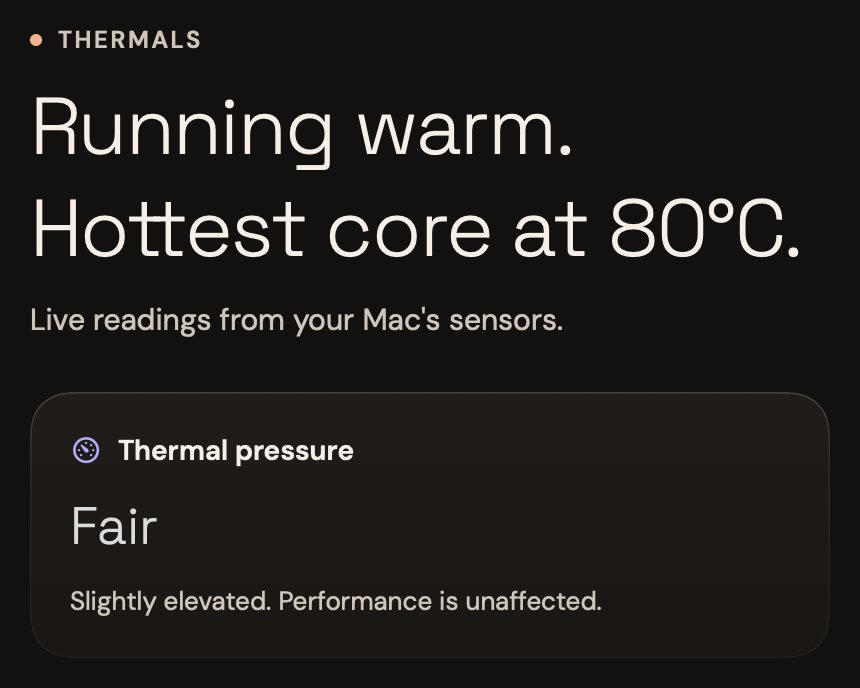
CPU temperature and thermal pressure
- CPU temperature
- A live reading from your Mac’s sensors. Keep it in the window, menu bar or Thermals widget.
- Thermal pressure
- macOS’s own view of the heat. Read it alongside temperature and what your Mac is working on.
Start free. Look deeper with Pro.
Free essentials
- Hottest CPU temperature and thermal pressure
- CPU temperature in the menu bar
- Basic temperature and pressure in the Thermals widget
More detail with Pro
- All available temperature sensors and recent charts
- Fan speeds on Macs that have fans
- Heat alerts and more detail in the Thermals widget
Available sensors depend on your Mac and macOS version. Tend reads temperatures and fan speeds; it never controls your fans.
Before you download.
Can I use Tend as an M1 Mac temperature monitor?
Yes. Tend runs on Apple silicon Macs, including M1, with macOS 13 or later. It works on MacBooks and desktop Macs; the available sensors differ by model. Intel Macs are not supported.
Can I monitor temperature on a MacBook Air?
Yes. An Apple silicon MacBook Air still reports temperature and thermal pressure. It has no internal fan, so there is no fan speed to display.
Does a high temperature mean something is wrong?
One reading alone does not establish a fault. Look at the workload, thermal pressure and whether the behavior persists. Our Mac temperature guide explains how to interpret those readings.
Get a clearer read on heat.
Download Tend, open Thermals, and start with the free readings.